
NEXT VIDEO
End
Video Insights & Analytics ID: c679af775185
End is a 7m 56s Science & Technology video published by Scott Schramm on September 22, 2022. To date, the upload has generated 145,774 views and maintains an engagement depth of 2.2%.
Creator Description
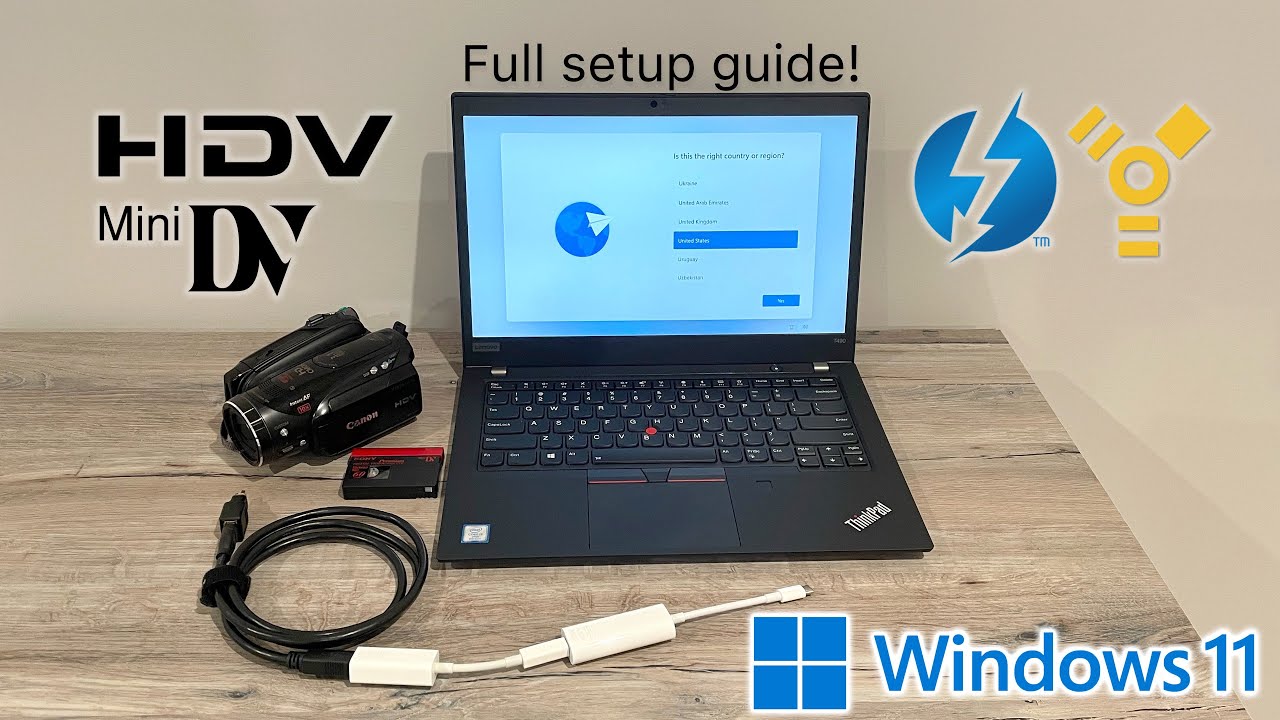
In this video I show the best way to capture your old mini DV camcorder tapes using a PC running the latest version of Windows 11 (22H2) using the adapters required to go from FireWire (i.Link, IEEE 1394, etc) to Thunderbolt 3 or (USB-C plug). Below are time stamps and links to the hardware and software you'll need.
Note if you have a brand new computer with an Intel 10th gen processor or newer or have Thunderbolt 4, please see my updated video here: https://youtu.be/u3OIcw4QH1w
*Time Stamps:*
0:00 - Intro
0:26 - Hardware setup
2:10 - Software setup
5:01 - Capture procedure - DV
5:56 - Capture procedure - HDV
6:27 - Optional final steps
6:42 - Problem troubleshooting
7:27 - Wrap up
7:55 - End
*Links to the items mentioned in the video:*
Apple Thunderbolt 3 and 4 (USB-C) to Thunderbolt 1 and 2 Adapter:
https://amzn.to/3SqHGPb
Apple Thunderbolt 1 and 2 to FireWire 800 adapter: (if unavailable, watch https://youtu.be/LXXSZdOZb-k for more info)
https://amzn.to/3UyFYwY
FireWire 800 to 400 mini plug cable:
https://amzn.to/3xMclOZ
FireWire 400 to 800 cable:
https://amzn.to/3xKbazE
FireWire 400 to 800 adapter:
https://amzn.to/3xLlw2i
FireWire 400 mini to 400 mini cable:
https://amzn.to/3LCxAIF
FireWire 400 mini to 400 full size adapter:
https://amzn.to/3LxJgg1
Have a desktop with a PCI/PCIe card slot, or a laptop with a ExpressCard/PCMCIA card slot:
https://amzn.to/3BAf5A5
Laptops with Thunderbolt/FireWire:
https://amzn.to/3dBGXfo
Other items I recommend:
https://www.amazon.com/shop/scottschramm
(note the links above are affiliate links which helps support my channel. Your price stays the same but a small commission may come back to me if you decide to purchase anything using my links. It's a win-win for everyone!)
*Software Mentioned:*
WinDV: https://www.videohelp.com/software/WinDV
HDV Split: https://www.videohelp.com/software/HDVSplit
K-Lite Codec Pack Basic: https://codecguide.com/download_k-lite_codec_pack_basic.htm
Handbreak: https://handbrake.fr/
*Other videos that may help you:*
How to connect a FireWire Audio Interface to a Mac or PC with Thunderbolt 3/USB-C
https://youtu.be/0EhzlqH9fMo
How to connect FireWire devices into new Mac's with Thunderbolt 3/USB-C
https://youtu.be/UW2Bbn_OjNA
How to connect FireWire devices to a new M1 Mac with Apple Silicon
https://youtu.be/x5ISyI3VcWo
How to use legacy FireWire and Thunderbolt devices on new PC's with Thunderbolt 4
https://youtu.be/u3OIcw4QH1w
*Troubleshooting*
If you are having issues with your PC connecting to the device, there are a few things you can try:
1. Ensure your PC has a Thunderbolt port (not just a USB-C/charging port). Visit the support page of your computer (support.dell.com, support.lenovo.com, etc) and verify that your drivers are up to date. Sometimes the Thunderbolt driver is separate and needs to be installed manually. Also check that your BIOS is up to date. If you're getting blue screens when you plug in, this is the solution.
2. Check the settings in your BIOS as there may be a setting in there to allow data over the Thunderbolt port. Here is an example link that shows the settings: https://www.dell.com/support/article/en-us/sln305418/restructuring-of-usb-and-thunderbolt-settings-on-new-bios-version?lang=en There is also usually an app within Windows called the "Thunderbolt(TM) Software " and make sure it is set to "Always Allow" like this: https://www.caldigit.com/thunderbolt-3-devices-in-windows-10-platform/
3. If you installed a special FireWire driver you may want to uninstall it and try the built in Windows driver as that may be all you need. You can also try installing a legacy FireWire driver by following these directions: https://www.startech.com/en-us/faq/firewire-cards-windows-legacy-driver-swap
Note if you have a brand new computer with an Intel 10th gen processor or newer or have Thunderbolt 4, please see my updated video here: https://youtu.be/u3OIcw4QH1w
*Time Stamps:*
0:00 - Intro
0:26 - Hardware setup
2:10 - Software setup
5:01 - Capture procedure - DV
5:56 - Capture procedure - HDV
6:27 - Optional final steps
6:42 - Problem troubleshooting
7:27 - Wrap up
7:55 - End
*Links to the items mentioned in the video:*
Apple Thunderbolt 3 and 4 (USB-C) to Thunderbolt 1 and 2 Adapter:
https://amzn.to/3SqHGPb
Apple Thunderbolt 1 and 2 to FireWire 800 adapter: (if unavailable, watch https://youtu.be/LXXSZdOZb-k for more info)
https://amzn.to/3UyFYwY
FireWire 800 to 400 mini plug cable:
https://amzn.to/3xMclOZ
FireWire 400 to 800 cable:
https://amzn.to/3xKbazE
FireWire 400 to 800 adapter:
https://amzn.to/3xLlw2i
FireWire 400 mini to 400 mini cable:
https://amzn.to/3LCxAIF
FireWire 400 mini to 400 full size adapter:
https://amzn.to/3LxJgg1
Have a desktop with a PCI/PCIe card slot, or a laptop with a ExpressCard/PCMCIA card slot:
https://amzn.to/3BAf5A5
Laptops with Thunderbolt/FireWire:
https://amzn.to/3dBGXfo
Other items I recommend:
https://www.amazon.com/shop/scottschramm
(note the links above are affiliate links which helps support my channel. Your price stays the same but a small commission may come back to me if you decide to purchase anything using my links. It's a win-win for everyone!)
*Software Mentioned:*
WinDV: https://www.videohelp.com/software/WinDV
HDV Split: https://www.videohelp.com/software/HDVSplit
K-Lite Codec Pack Basic: https://codecguide.com/download_k-lite_codec_pack_basic.htm
Handbreak: https://handbrake.fr/
*Other videos that may help you:*
How to connect a FireWire Audio Interface to a Mac or PC with Thunderbolt 3/USB-C
https://youtu.be/0EhzlqH9fMo
How to connect FireWire devices into new Mac's with Thunderbolt 3/USB-C
https://youtu.be/UW2Bbn_OjNA
How to connect FireWire devices to a new M1 Mac with Apple Silicon
https://youtu.be/x5ISyI3VcWo
How to use legacy FireWire and Thunderbolt devices on new PC's with Thunderbolt 4
https://youtu.be/u3OIcw4QH1w
*Troubleshooting*
If you are having issues with your PC connecting to the device, there are a few things you can try:
1. Ensure your PC has a Thunderbolt port (not just a USB-C/charging port). Visit the support page of your computer (support.dell.com, support.lenovo.com, etc) and verify that your drivers are up to date. Sometimes the Thunderbolt driver is separate and needs to be installed manually. Also check that your BIOS is up to date. If you're getting blue screens when you plug in, this is the solution.
2. Check the settings in your BIOS as there may be a setting in there to allow data over the Thunderbolt port. Here is an example link that shows the settings: https://www.dell.com/support/article/en-us/sln305418/restructuring-of-usb-and-thunderbolt-settings-on-new-bios-version?lang=en There is also usually an app within Windows called the "Thunderbolt(TM) Software " and make sure it is set to "Always Allow" like this: https://www.caldigit.com/thunderbolt-3-devices-in-windows-10-platform/
3. If you installed a special FireWire driver you may want to uninstall it and try the built in Windows driver as that may be all you need. You can also try installing a legacy FireWire driver by following these directions: https://www.startech.com/en-us/faq/firewire-cards-windows-legacy-driver-swap